Marching Sky
A physically grounded ray-marched sky for Cycles. Real clouds, living weather systems, and authentic celestial mechanics in a single responsive panel — lighting your scene with the exact sky you see.
Fair Weather
Bright blue sky and scattered white cumulus
Atmospheres in real motion
Clouds, aurora curtains, lightning, meteor trails, and contrails animate smoothly across the Blender timeline. Scrub backward or forward with perfect deterministic fidelity.
Volumetric Cloud Evolution
Wind direction, advection turbulence, and diurnal thermal convection over time.
Dynamic Aurora Curtains
Real-time rayed field sheets with energetic folds and atmospheric oxygen emission.
Intra-Cloud Lightning
Multi-stroke arc discharges lighting dense cloud anvil masses from within.
Meteor Radiant Streaks
Ionized trails and lingering persistent dust trains streaking from a shared celestial radiant.
Skies in one click
19 presets in five groups, from Clear Blue to a Blood Moon eclipse. Apply one, then change anything: nothing is baked.
Cloud-driven weather
Rain shafts, god rays, primary & secondary rainbows, and lightning emerge naturally from the volumetric clouds you create.
One unified clock
Change the hour and the Sun, Moon phase, stars, Milky Way and lighting all follow. Keyframe Time from 18 to 30 for an evening-to-morning time lapse.
Responsive viewport
While you orbit or play the timeline, the clouds render at a lighter preview quality, then return to full quality the moment you stop. Final renders always use full quality.
Simple or Expert interface
Simple shows the controls most looks need in four tabs; Expert shows everything. Switching never changes your sky, and every section has a built-in help popup.
One Global seed
Roll the dice to re-shuffle every pattern at once: clouds, stars, aurora, nebula, contrails, meteors and lightning. Each still keeps its own seed for fine-tuning.
Look around inside the sky
Drag inside the viewport to look in any direction across the full 360° sky of 15 of the presets.
Golden Hour
Low warm sunlight, broken clouds and subtle sun shafts
The complete sky now, the ground effects later
This product is Marching Sky: the complete live, ray-marched sky inside Blender Cycles. The snow, mud and ground-level rain you can see in a few shots of the interactive preview come from Ground Effects, a separate pack that is not included with this purchase. It will be released later as its own product on Superhive.
Marching Sky
Live ray-marched volumetric sky engine inside Blender Cycles
- One ~47–49 MB install — procedural sky with infinite angular resolution; only the Moon disc and small noise & lookup tables are bundled
- Fully customizable live — art-direct 3 cloud layers, Sun, Moon, rain, aurora & nebula
- Timeline animation — drifting clouds, flickering lightning, meteors & eclipses
- 3D scene integration — optional cloud shadows on your scene, a physical camera lens flare & 360° HDR panorama renders
Ground Effects
Weather-driven ground and precipitation, sold separately once released. Not part of this purchase.
- Interactive snow & mud ground — terrain surfaces that respond to the weather overhead
- Snow simulation — falling snow plus time-lapse snow building up on the ground
- Rain & wintry mix — precipitation falling through your scene at ground level
See what each atmospheric effect adds
Identical camera coordinates, identical seed, identical render settings. Drag the slider to compare with and without each effect.
One clock for the entire hemisphere
The Sun, Moon phase, stars and Milky Way move together from one Time control. Latitude and season decide the real sunrise and sunset, and one-click Dawn, Noon, Dusk and Night buttons jump to each time of day.
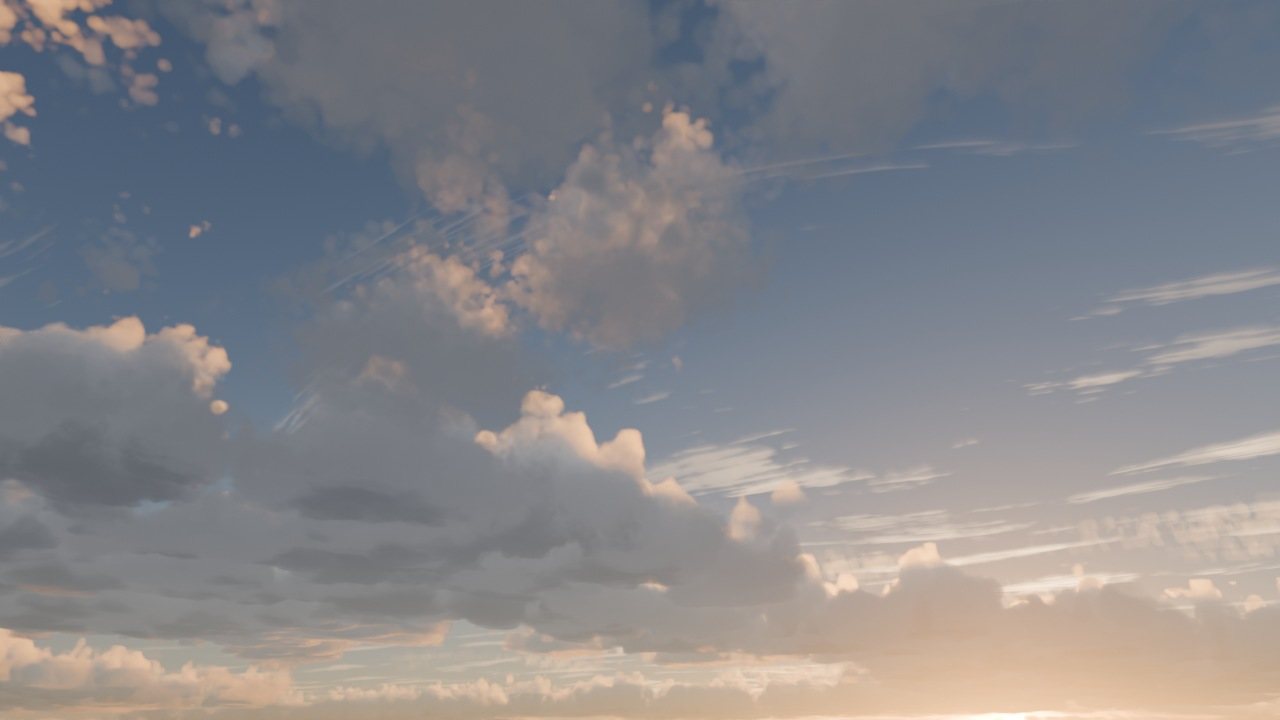
Dawn
Time › Dawn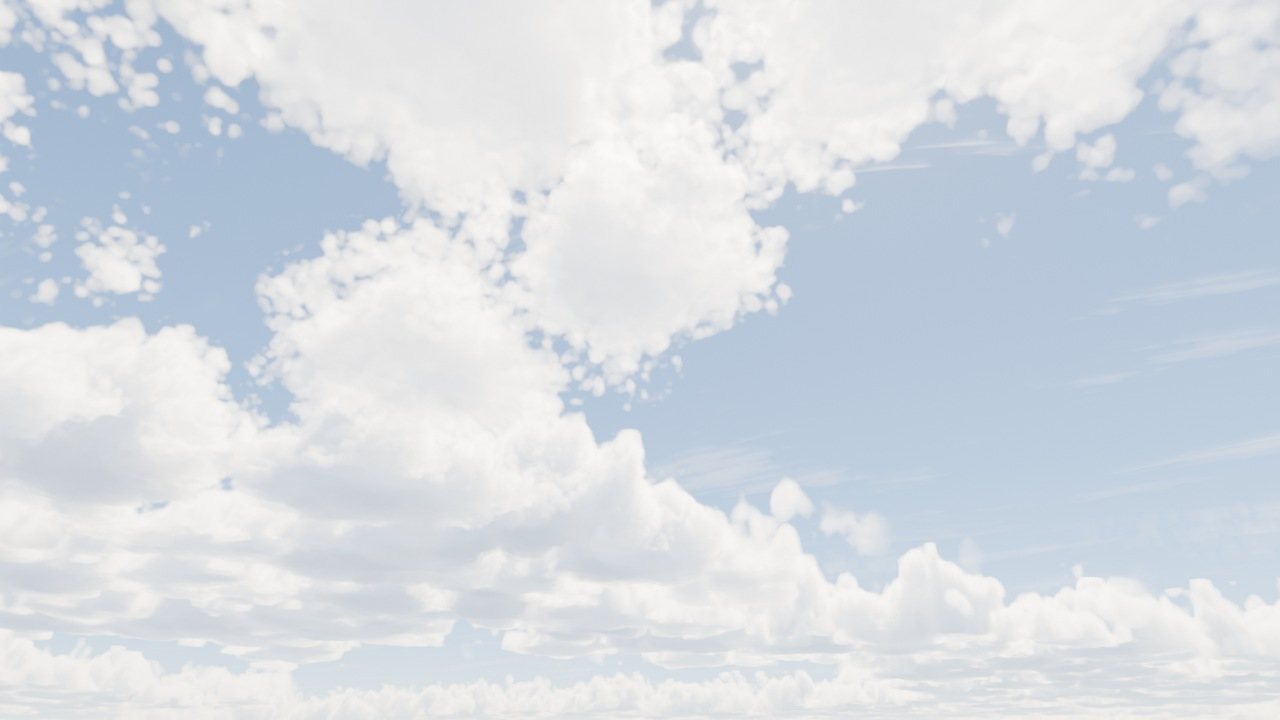
Noon
Time › Noon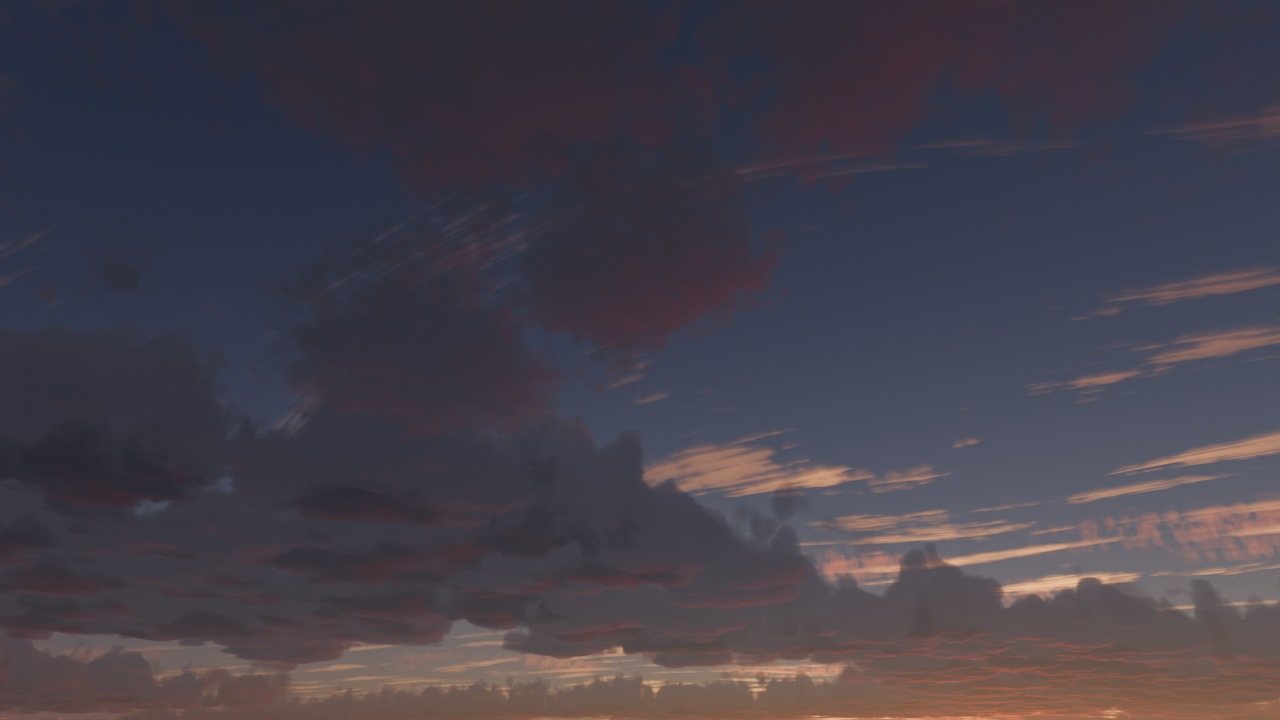
Dusk
Time › Dusk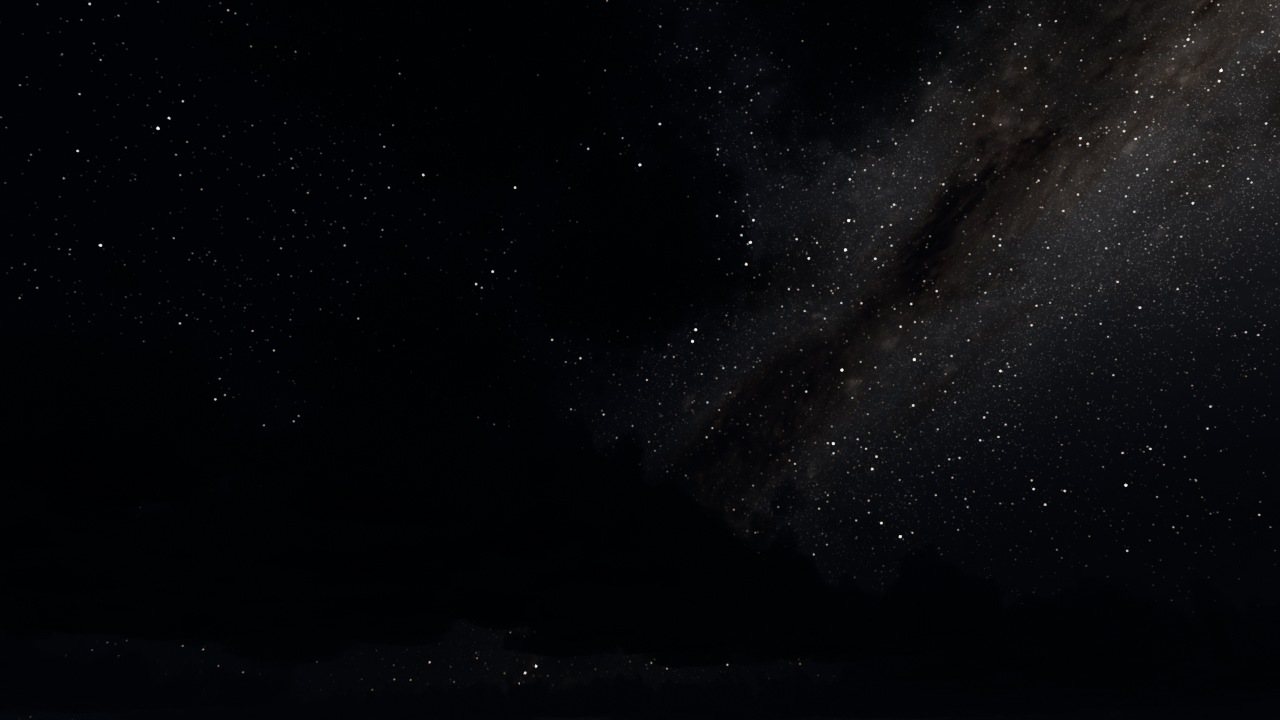
Night
Time › NightFull Lunar Cycle
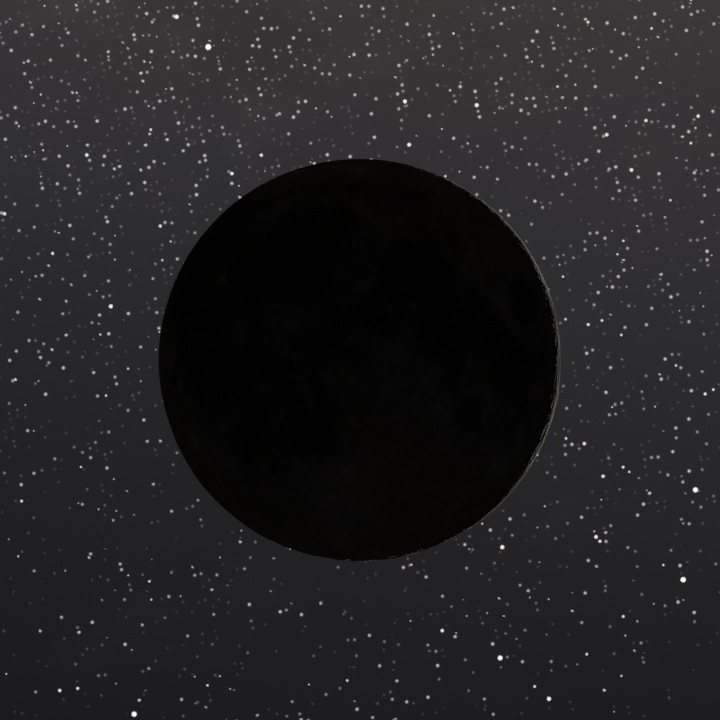
New Moon
0% lit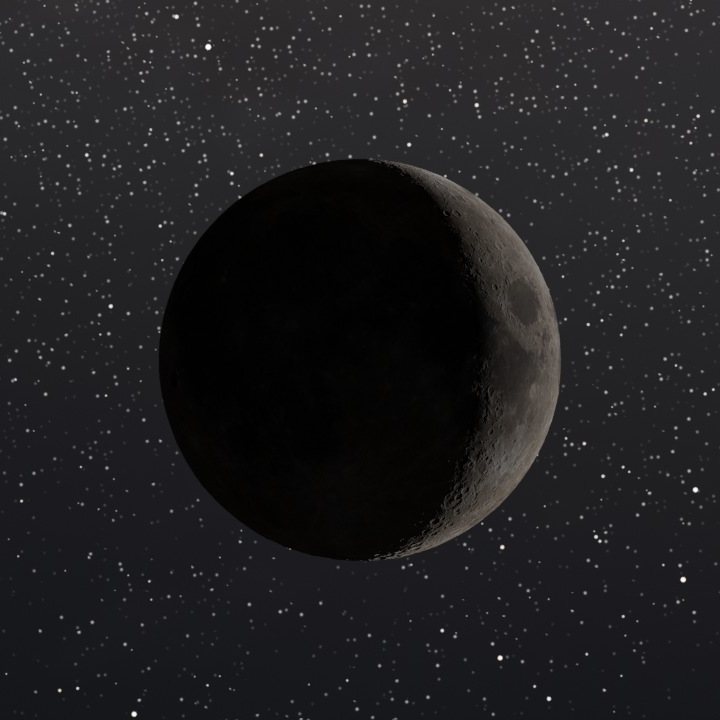
Crescent
21% lit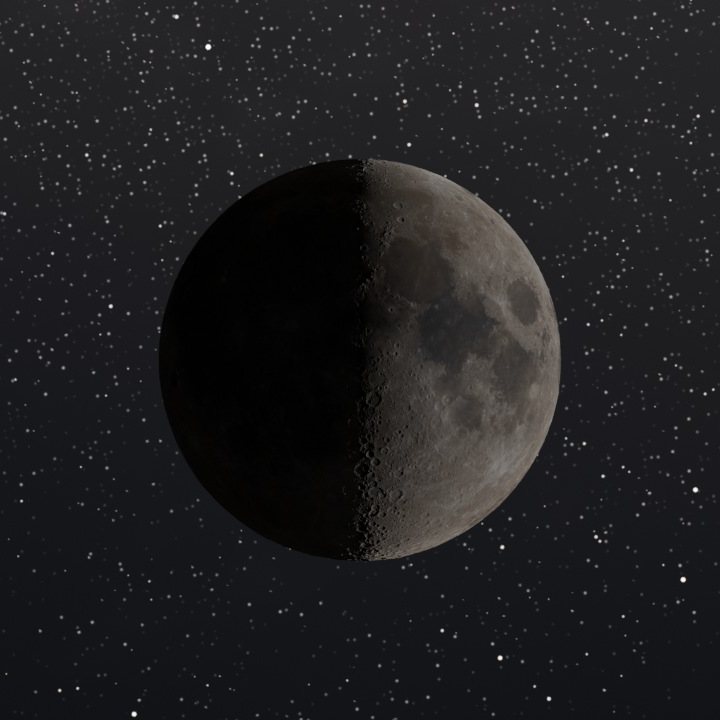
Half Moon
50% lit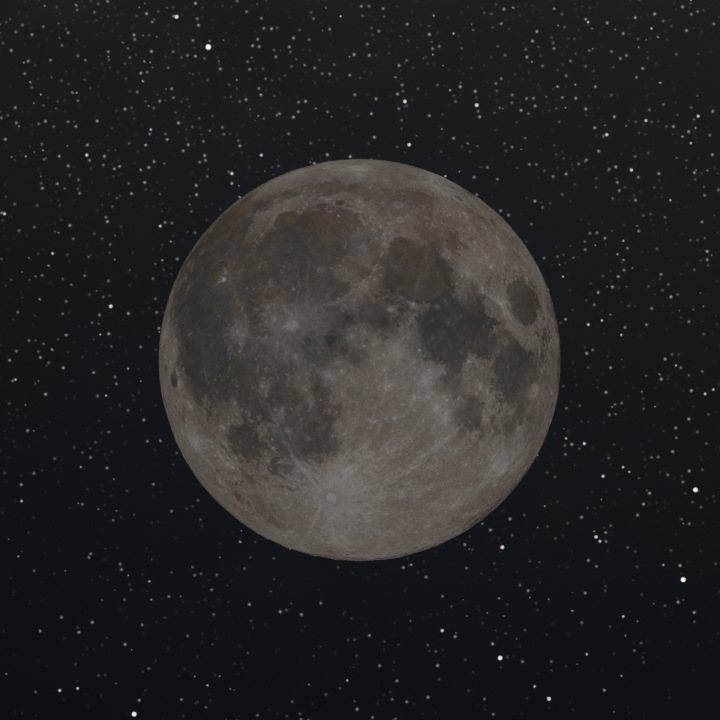
Full Moon
100% litStays interactive while you create
Measured on modest hardware (GeForce RTX 3050 Laptop GPU, OptiX, Blender 5.2.3, 1920 × 955 viewport, Fair Weather preset), orbiting the Rendered viewport in 79 steps and stopping. Median of three runs, compared against Cycles’ default viewport batch size. Lower sample budget while the camera moves, near-instant snap back to full quality once it stops.
Simple setup, one patient first launch
Install Extension
Requires Blender 4.5 LTS or newer; every feature, the lens flare included, works from 4.5 on. Open Edit → Preferences → Get Extensions, open the small ⌄ menu at the top right, choose Install from Disk and pick the .zip. Keep it zipped.
Open Sidebar
In the 3D Viewport, press N to toggle the sidebar and click the Marching Sky tab.
Create & Render
Click Create sky + clouds, or Add clouds to current world to keep your own world or HDRI. Then switch the viewport to Rendered shading (Z › Rendered).
Found a problem? Tell me right away
The first two months after launch are a dedicated support period. If you hit a bug, an error, a crash, a setting that doesn’t behave as described, or anything in the sky that looks wrong, please report it straight away through Contact the creator on this product page, and I’ll fix it as quickly as I can. Every report helps, however small.
Intensive launch support
Bug fixes are my top priority, with updates released quickly as reports come in. I’ll also add improvements and new features based on your feedback.
Long-term support
Marching Sky stays supported. Bug reports keep getting fixed, and the add-on keeps getting compatibility updates for new Blender versions.
What to include
- What you were doing when it happened, and what you expected instead
- Your Blender version and Marching Sky version
- Your operating system and graphics card
- A screenshot if it’s a visual problem
Crash, error or not working? Send the console log
The Blender console shows exactly what went wrong. Please copy its full text into your message.
- Windows: in Blender, choose Window › Toggle System Console, reproduce the problem, then copy everything in the console window.
- macOS / Linux: start Blender from a Terminal, reproduce the problem, then copy the Terminal output.
- If Blender closed on its own: also attach
blender.crash.txt. On Windows it’s in your temp folder (type%TEMP%in the File Explorer address bar); on macOS and Linux it’s in/tmp.
Common Questions
Does it work with Eevee?
No, and it won't work in Eevee. Marching Sky is written in Open Shading Language (OSL), which only Cycles supports. Eevee cannot run OSL shaders at all, so the sky and clouds will not appear there. Use Cycles (Rendered viewport shading or final render).
Do I need an NVIDIA RTX GPU?
No. Cycles runs OSL shaders on the GPU only through NVIDIA OptiX, so an NVIDIA RTX GPU gives the fastest viewport and renders. On AMD, Intel, Apple or older NVIDIA GPUs, Marching Sky renders on the CPU, which is fully supported but slower.
Is the snow, mud and ground rain in the preview included?
No. Those shots use Ground Effects, a separate pack that is not part of this product. It will be released later as its own product on Superhive. Everything else in the preview, including the clouds, sky, Sun, Moon, stars, aurora, meteors and lightning, is Marching Sky.
Does it require external texture maps or HDRIs?
The entire atmospheric model — Rayleigh/Mie scattering, clouds, star fields, Milky Way dust lanes, aurora curtains, and deep-space nebulae — is generated procedurally with infinite resolution; no photographs or HDRIs are used. The package bundles only a high-resolution pre-baked lunar surface disc for physical Moon accuracy, plus a small cloud noise atlas and atmosphere lookup tables that the shader samples.
Do clouds cast realistic shadows on my scene geometry?
Yes. Ground cloud shadows are off by default to keep things fast. Turn them on with Cast shadows under Lighting › Cloud lighting to get realistic cloud shadows across terrains and architectural elements.
Can I export panoramic HDR skies for use in other engines?
Yes, using Cycles’ own panoramic camera. Set the camera to Panoramic › Equirectangular and render to OpenEXR to get a 360° HDRI of your exact sky. If the HDRI should light scenes without ground, turn off Black below horizon (Celestial › Sun & Moon › Atmosphere) first.
Can I keep my own world or HDRI?
Yes. Add clouds to current world keeps your Sky Texture, HDRI or plain colour world and lights the clouds from it. After changing the world, click Refresh world lighting in the Lighting tab. With an HDRI, the Sun controls aim the add-on’s helper sun; they do not rotate the HDRI. Remove Marching Sky restores your previous world.
Do my scene lamps light the clouds? Can I fly through them?
No to both, by design. The clouds take their light from the sky’s Sun, Moon and ambient light only, so point, spot and area lamps do not light them. The clouds are a distant sky layer: objects inside the cloud envelope draw in front of them, and a camera cannot fly through a cloud. Aurora, nebula and contrails are distant too, so they show no parallax when the camera moves.
Does a project need the add-on on every computer that renders it?
Yes. The cloud noise data lives in the extension folder, not inside the .blend, so install Marching Sky on every machine that opens or renders the project, including render farms.
Will Marching Sky keep getting updates?
Yes. The first two months after launch are an intensive support period with fast bug fixes and new features based on feedback. After that the add-on keeps long-term support: bug fixes and compatibility updates for new Blender versions.
Did this product use AI during development?
Yes, but as a precision tool, not a generator. I never handed it a general “build me this” request and shipped whatever came back. I used it more like a scalpel: giving it specific directions to implement particular pieces, and to clean up code.
For example, I had it search through my code for anything that might be hurting the graphics. It found one critical issue: every cloud layer, even the highest ones, was lit as if it sat at the bottommost layer. At sunrise and sunset that made the lighting the same on all the layers, instead of each layer being lit for its own altitude. With that pinpointed, I was able to fix it using the AI. That is how AI was used here: precise, directed work rather than a general prompt it ran with on its own.
AI also helped write the documentation and this product page, and it spellchecked the text inside the add-on, since English isn’t my first language.
No AI-generated images, 3D models, or textures of any kind are used in this add-on. AI was used only on the code and documentation side.